Table of contents
Windows
- open settings and click on your name.
- this will show the "Accounts" setting with "Passkeys" on the bottom.
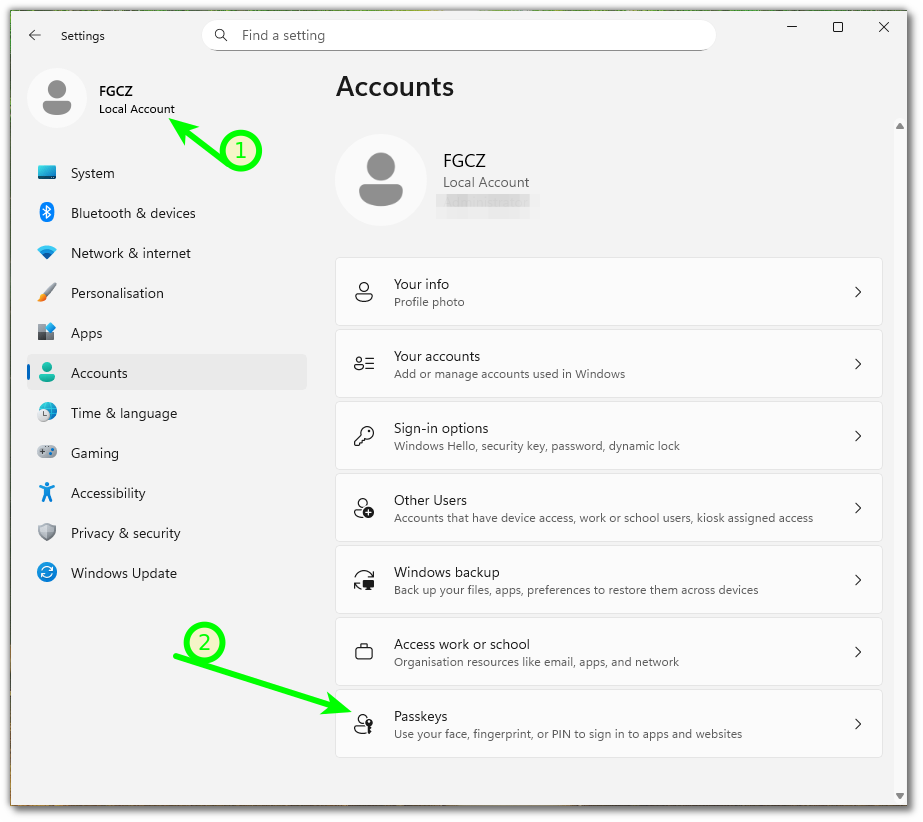
- click on "Passkeys" and if you have not set up "Windows Hello" you are remembered to do so.
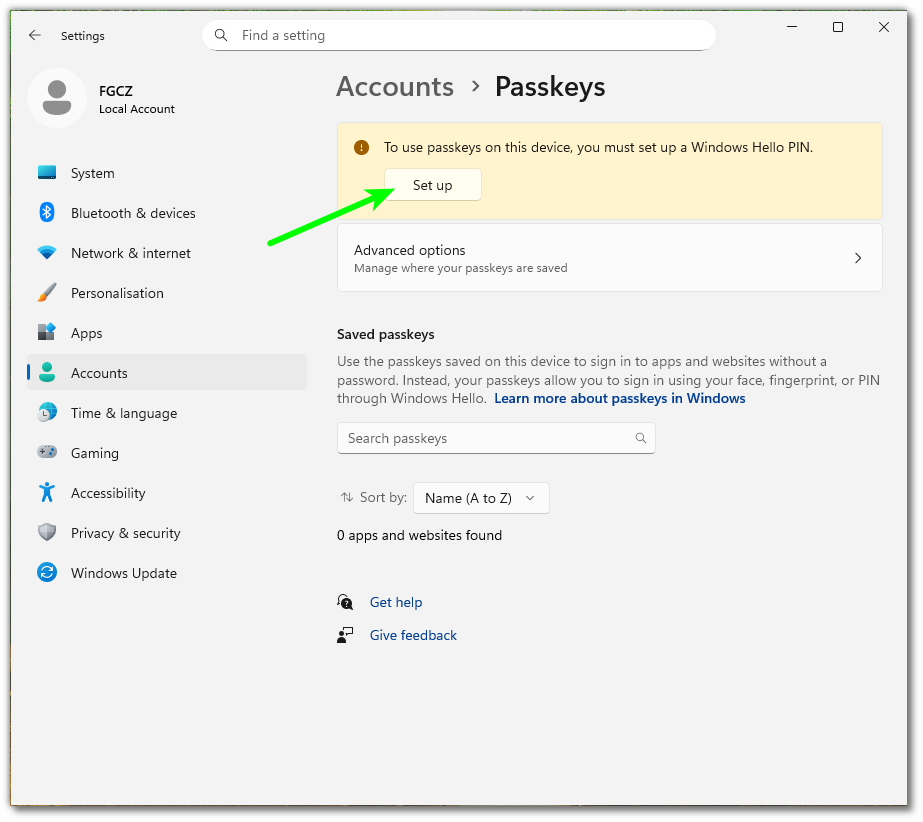
Windows Hello
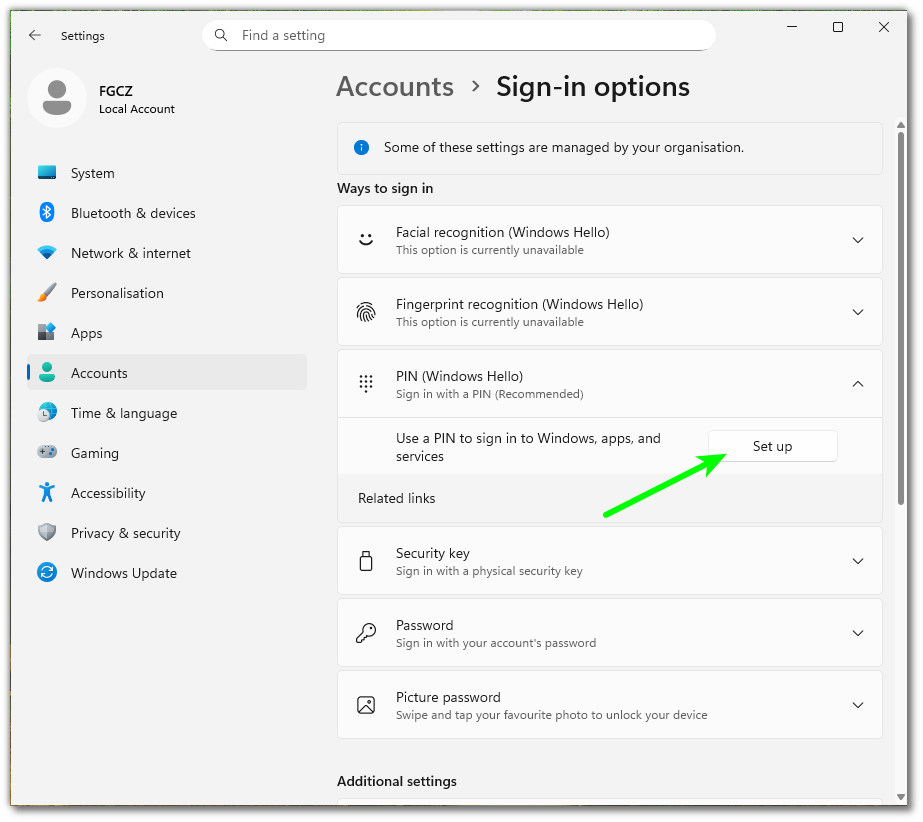
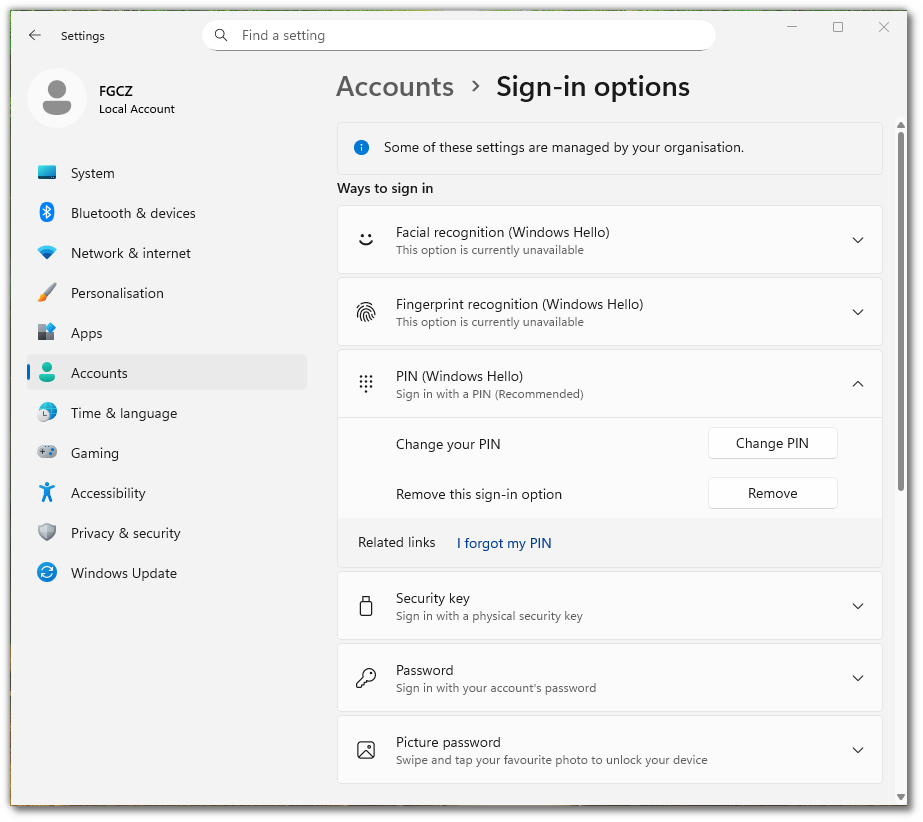
- Select a possible "Sign-in-option". In this example the computer has no camera and no fingerprint device, which leaves PIN as the only option. In your case select whatever is available.

- As an example, I set up a PIN. The "facial" or "fingerprint" work similar.
- look for the new "Windows Security" window coming up (look in the taskbar)
- You have to enter the password which you used to login to this computer.
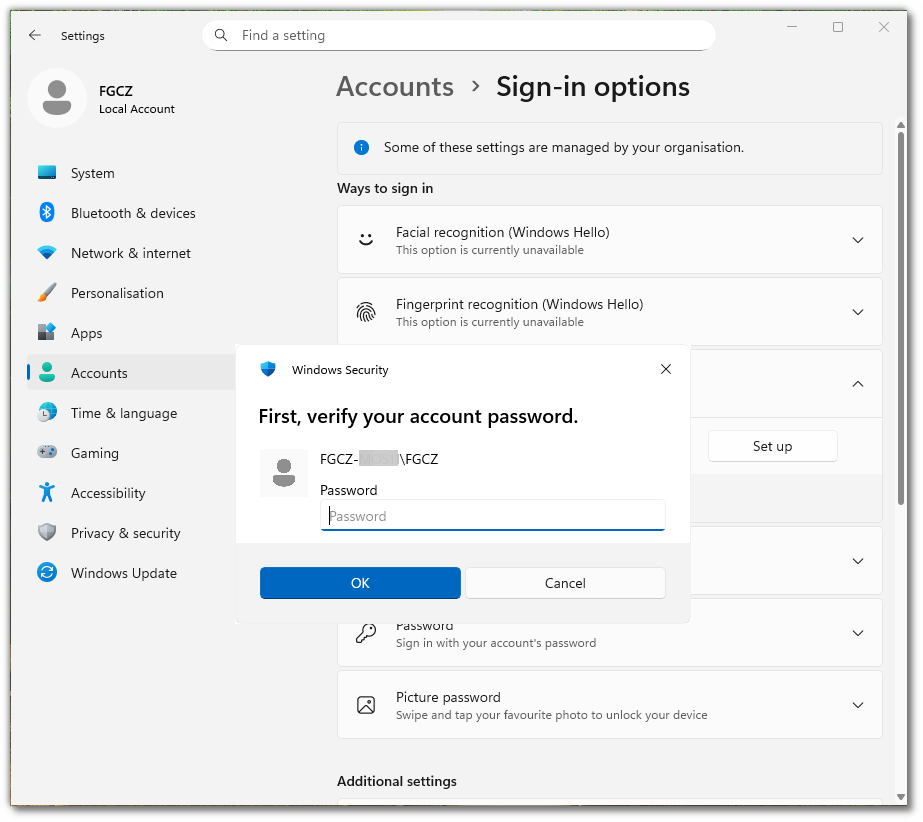
- the next "Windows Security" window asks for the PIN (or the fingerprint or your face).
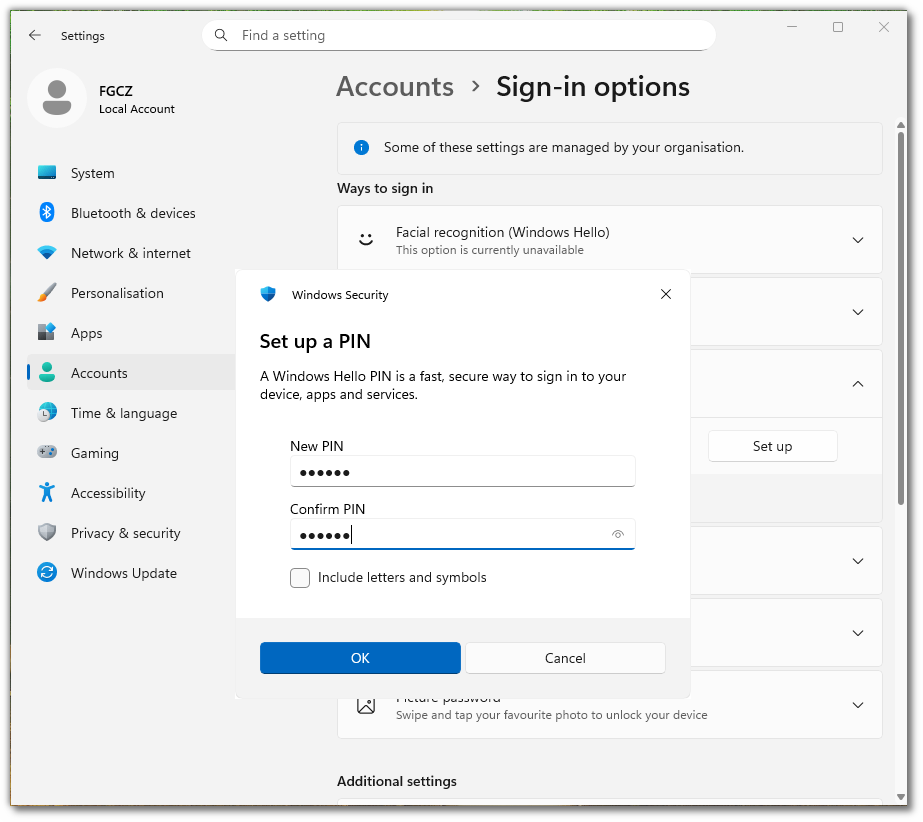
- on success the PIN is saved
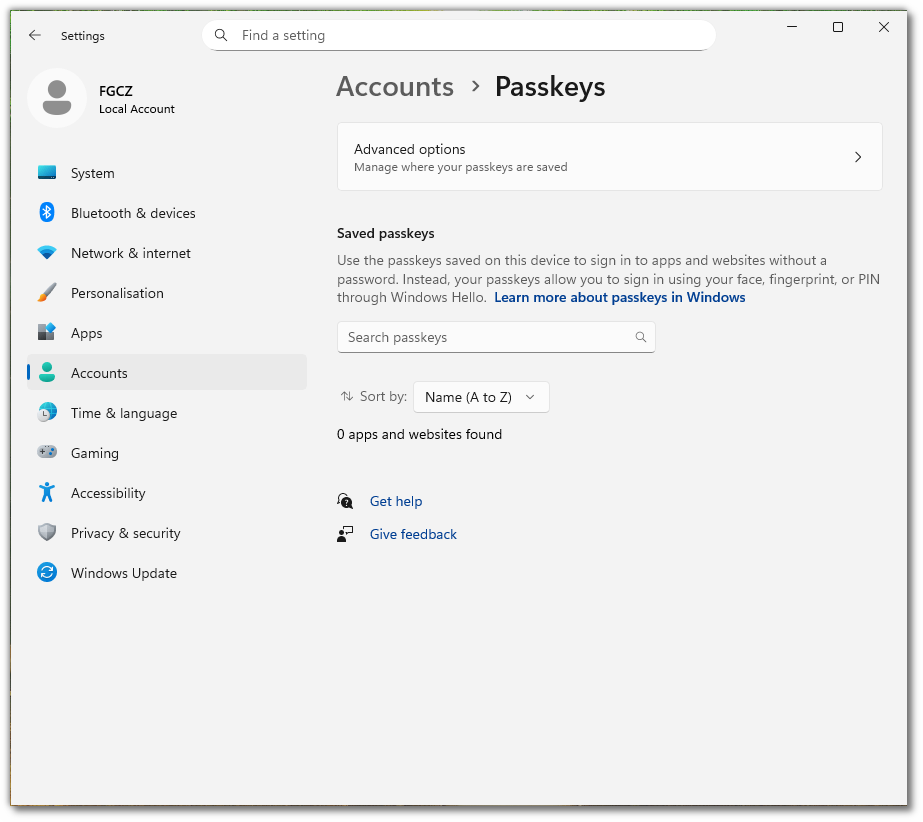
- and the reminder in the "Passkeys" settings is gone. You are now ready to store passkeys on this device.
B-Fabric in Edge
Add Passkey to B-Fabric
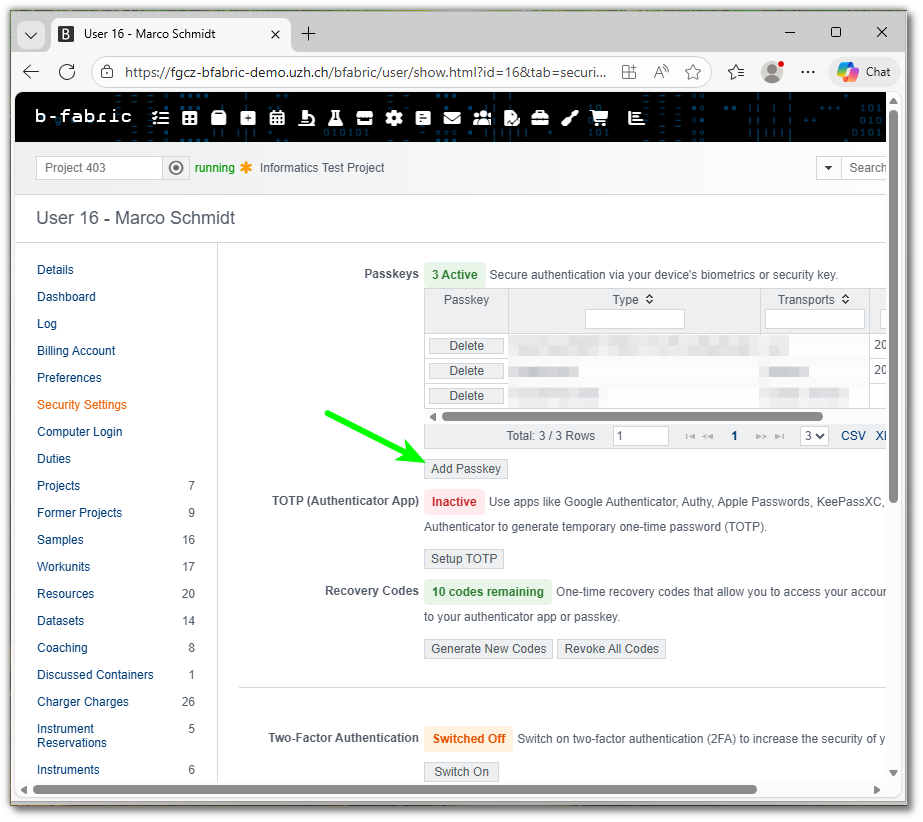
- Login as usual with the password and go to the user "Security Settings" and click on "Add Passkey"
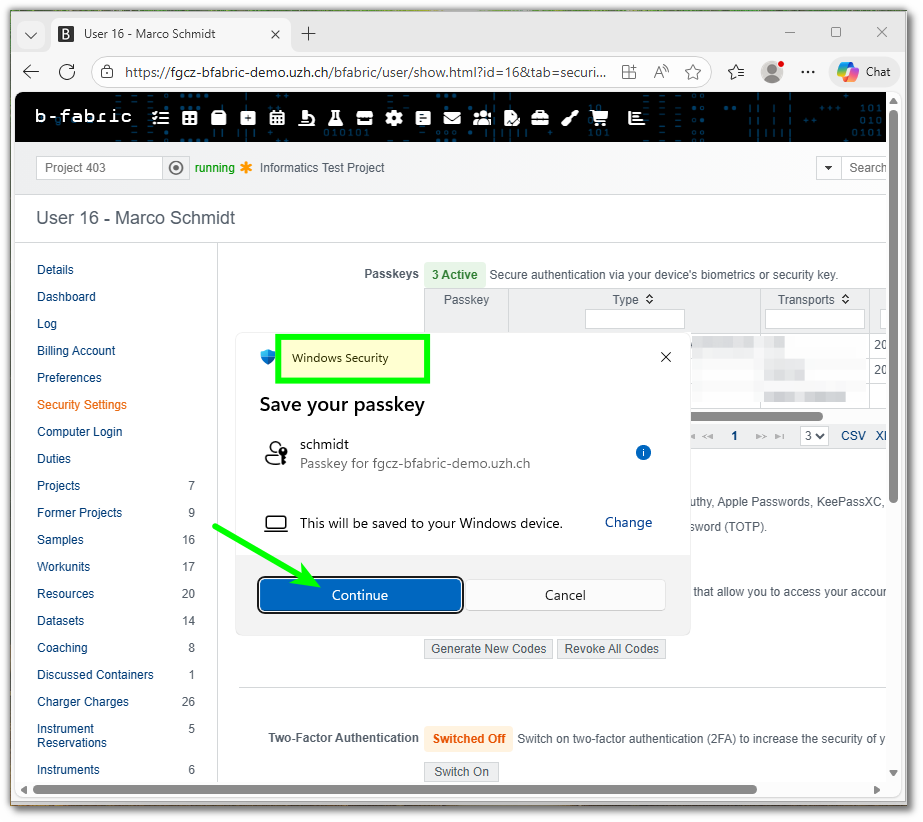
- again the "Windows Security" window pops up (check taskbar)
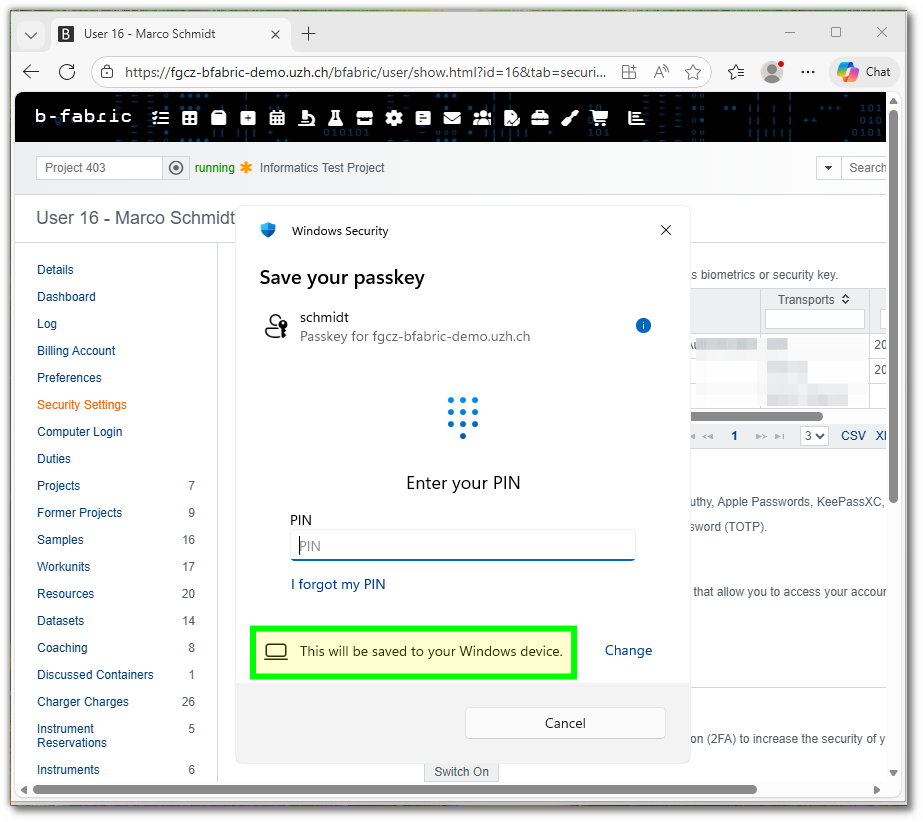
- to store the passkey on the device you PIN (or face or fingerprint) is asked by "Windows Security"
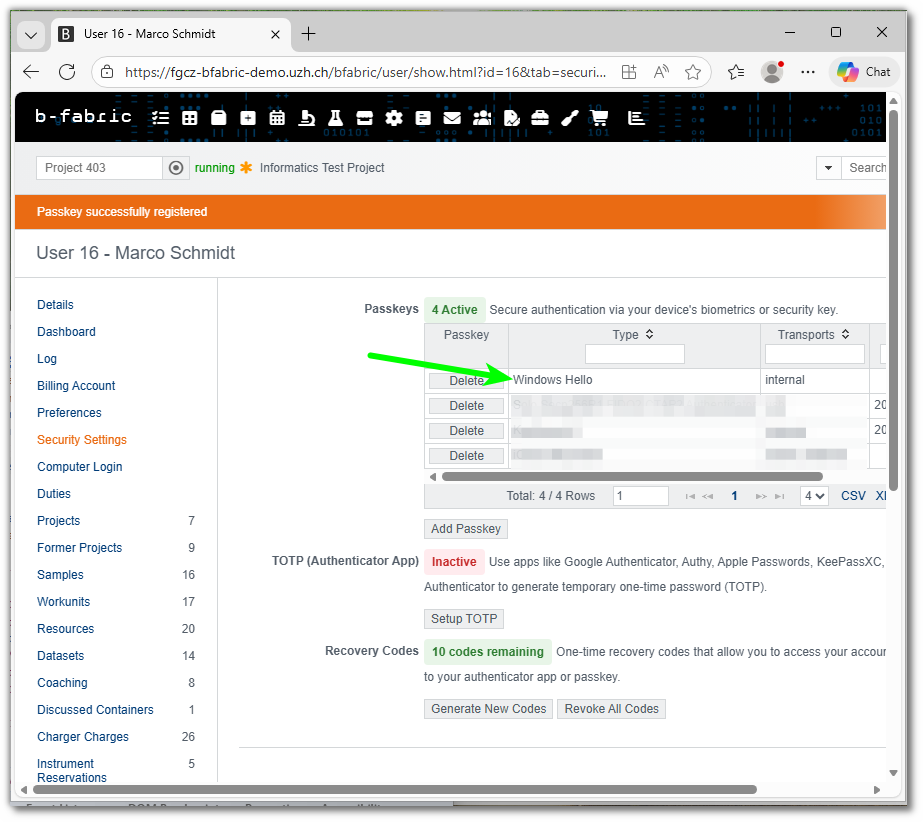
- On success your new passkey is shown in the list in B-Fabric
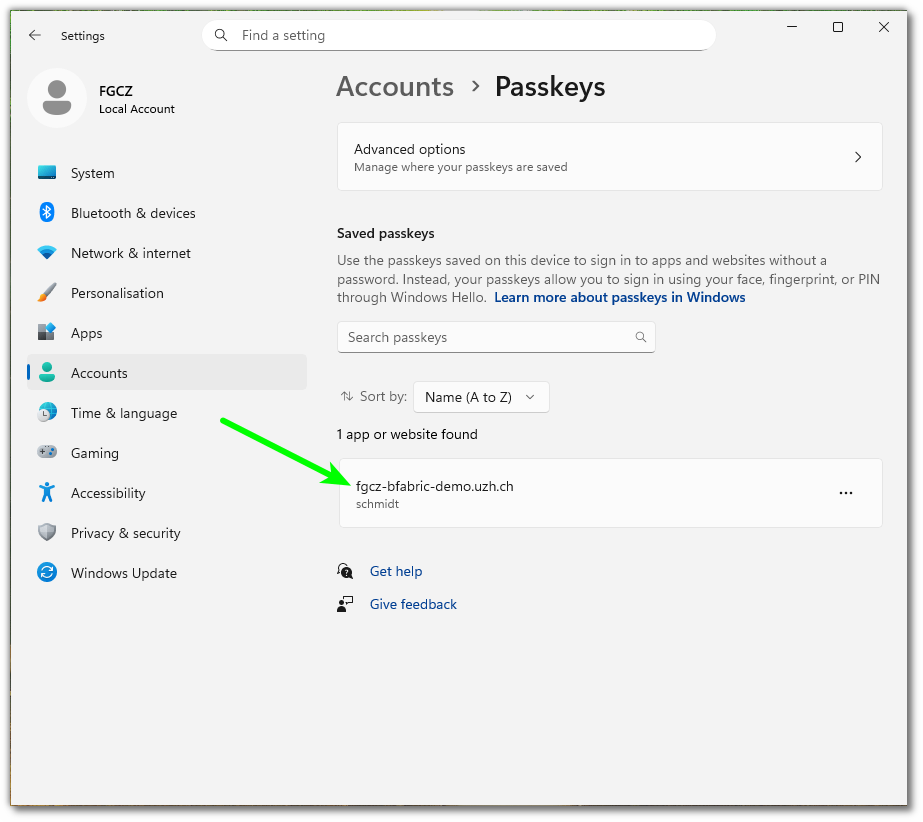
- in the windows settings you can see the stored passkey, too.
Login with Passkey to B-Fabric
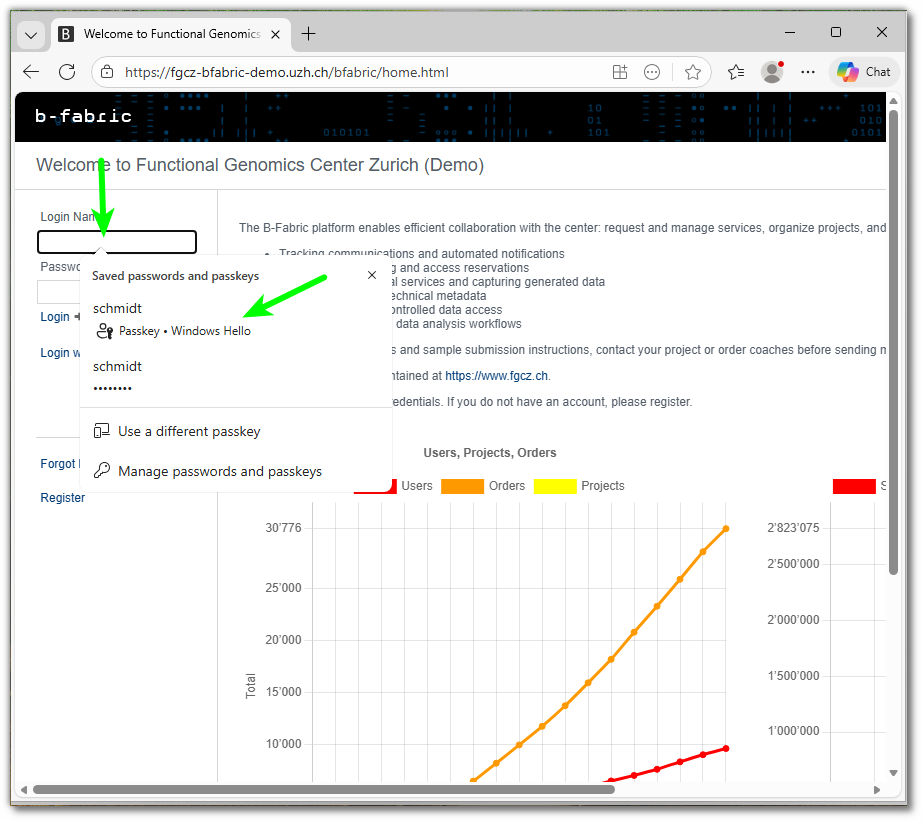
- click in the "Login Name" field and select your passkey or on the "Login with passkey" link.
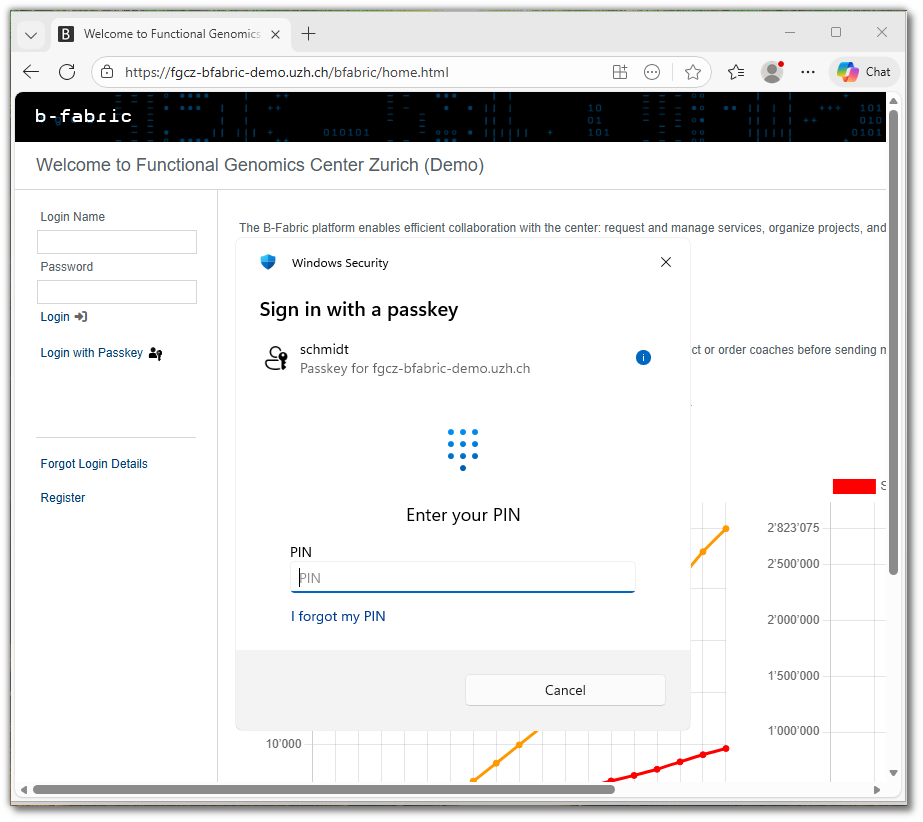
- Again "Windows Security" comes up (check taskbar) and asks for the PIN (or face or fingerprint).
- and you are magically logged in to B-Fabric