Big File Upload
B-Fabric supports uploading large files (multi-GB) directly in the browser. Uploads are resumable: they survive network interruptions, laptop sleep and even browser restarts. Duplicate files are detected before any data is transferred, so re-uploading an existing file costs nothing.
If you want to upload from a script or the command line instead, see Scripted Big File Uploads.
Limits
The limits are configured per instance (defaults shown):
| Limit | Default |
| Maximum size per file | 3 GB |
| Maximum number of files per upload | 100 |
| Maximum total size per upload | 100 GB |
Uploading in the browser
- Choose Upload Workunit from the menu (or open an upload-enabled application) and select the application and the project/order the data belongs to.
- Drop files — or whole folders — onto the upload area, or pick them with the file browser.
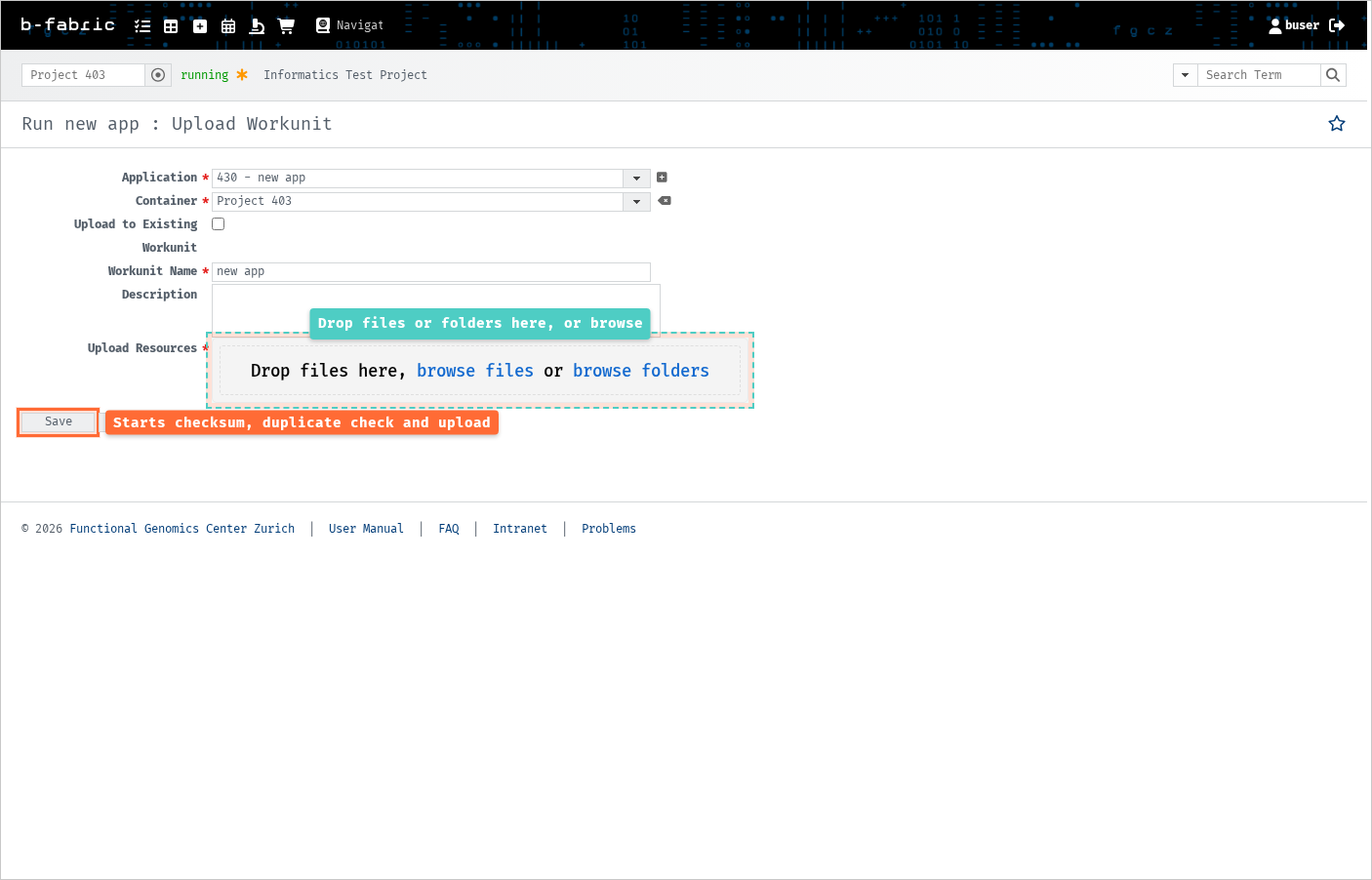
The upload screen: drop files onto the dashed area, then press Save
- Press Save. Before any data is transferred, your browser computes an MD5 checksum per file and B-Fabric checks each file against the container:
- Identical file already exists — the file is skipped automatically (nothing is re-uploaded)
- Name conflict (same name, different content) — you are asked how to proceed
- New — the file is uploaded
- The upload runs in chunks and shows per-file progress.
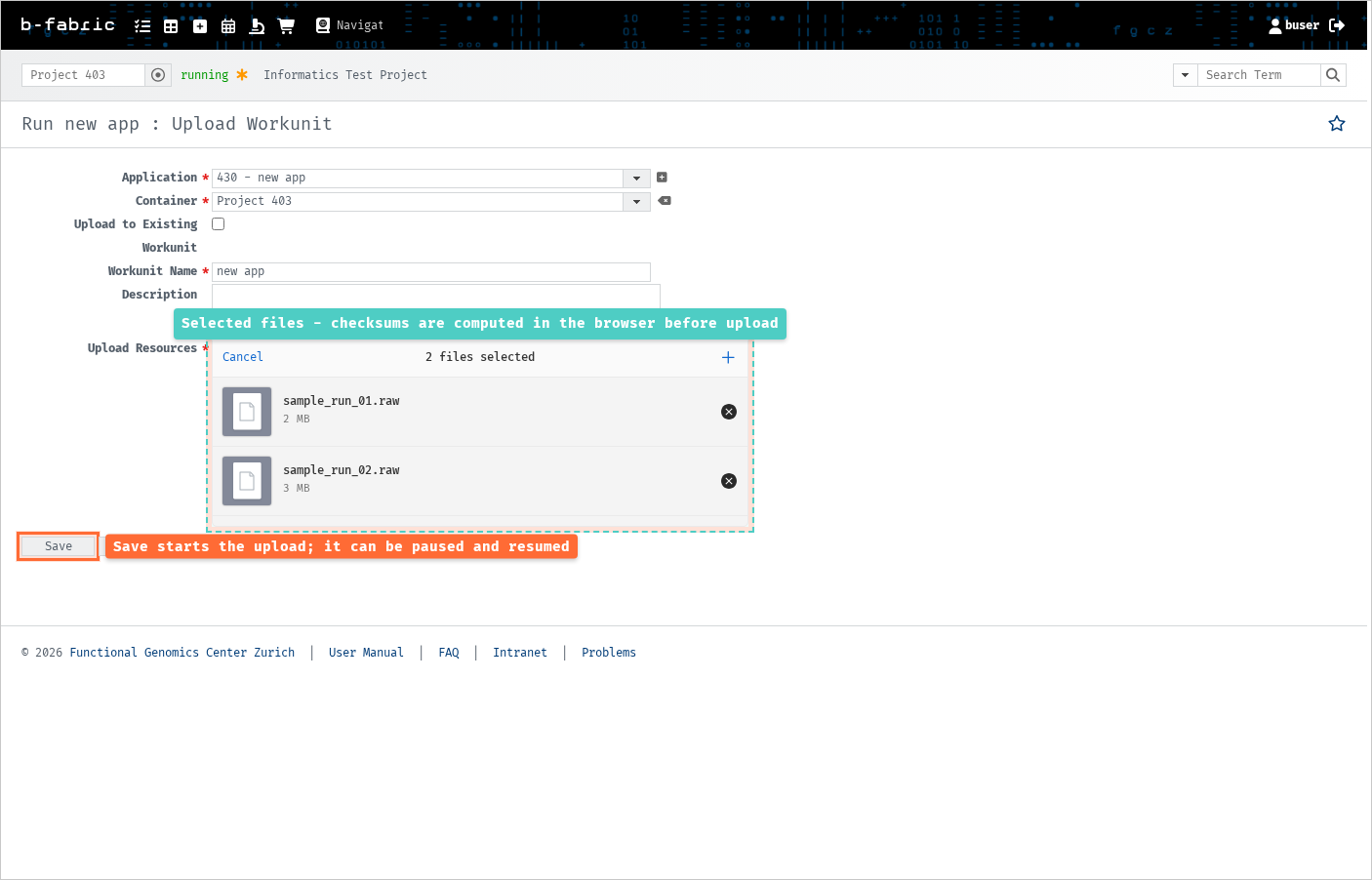
Files selected and ready — checksums are computed in the browser before upload
Interruptions and resume
You can close the laptop lid, lose Wi-Fi or even restart the browser: when you return to the upload page and re-select the same files, the upload continues where it stopped instead of starting over.
What happens after the upload
After the last chunk arrives, the storage server verifies the checksum, runs a virus scan and registers the file in B-Fabric. The resource then changes from pending to available. For very large files this verification step can take a moment — the file is not lost, just being checked.
Uploads that are started but never finished are cleaned up automatically after 48 hours.
Troubleshooting
| Symptom | Explanation |
| "File exceeds maximum allowed size" | The file is larger than the per-file limit — contact your administrator if you need an exception |
| A file was skipped | An identical file (same content) already exists in the container — this is expected behavior, not an error |
| Resource stays pending for a long time | Checksum verification and virus scan are still running, or the upload never finished — pending uploads are cleaned up after 48 h |
| "TUS upload is disabled" | The feature is switched off on this instance — contact your administrator |