Manage Passkeys
What are Passkeys?
Passkeys are an alternative to passwords and one-time passcodes, that provide faster, easier, and more secure sign in to B-Fabric.
More information:
What are passkeys?
| Passwords |
Passkeys |
| A combination of letters, numbers, and special characters. |
Biometrics or device pin codes. |
| Can be guessed. |
Impossible to guess. |
| Stored publicly (obscured by a code, but that code can be cracked). |
Never leaves your device (and is still protected even if your device is stolen). |
| Can be entered on a fake version of B-Fabric. |
Only works with the real B-Fabric. |
Supported Credential Managers
Passkeys can be stored and managed by various credential managers:
How to Add or Remove Passkeys
Add a Passkey
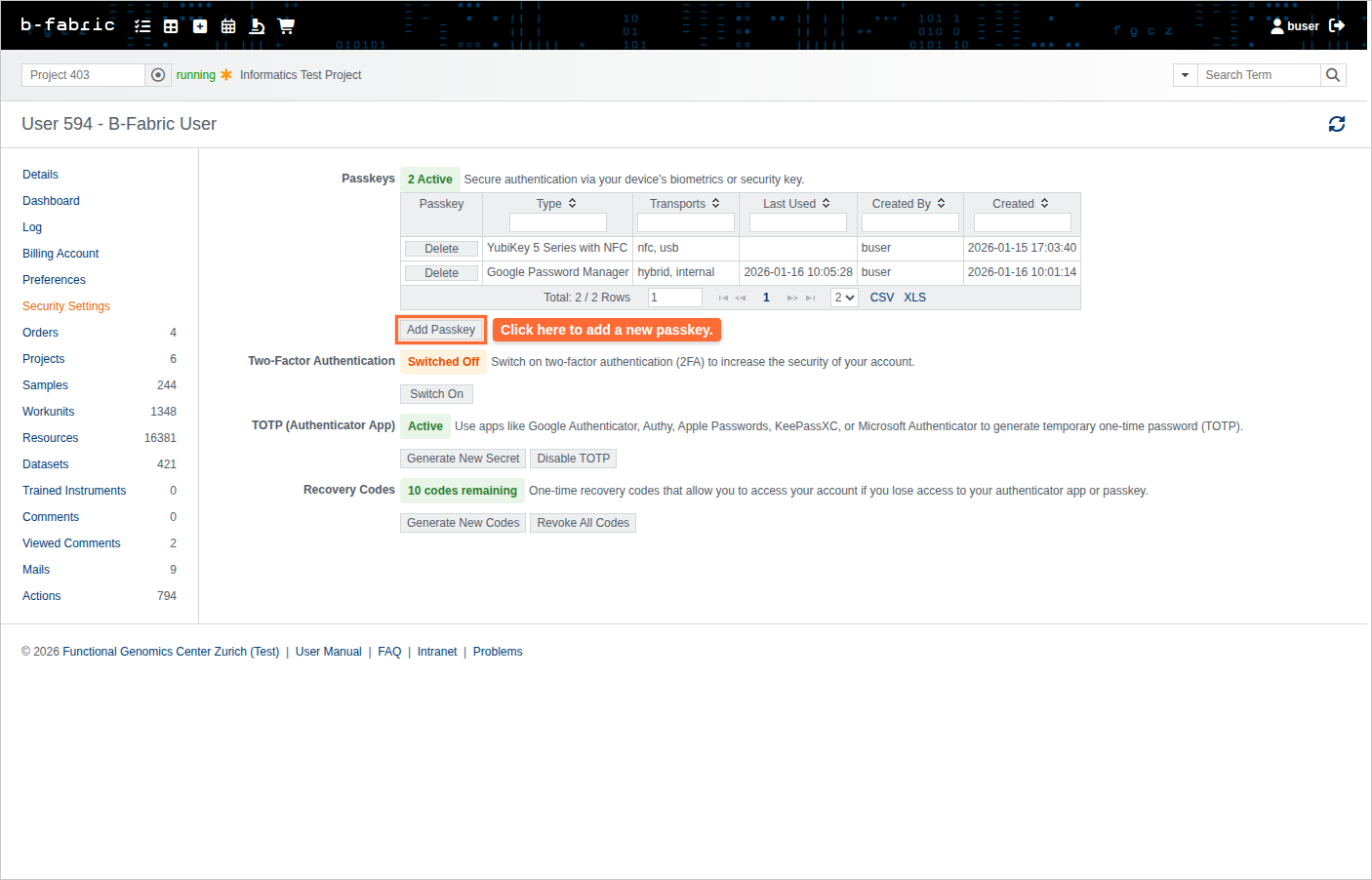
- Navigate to your user profile and click the 'Two Factor' tab.
- Under 'Passkeys', click 'Add Passkey'.
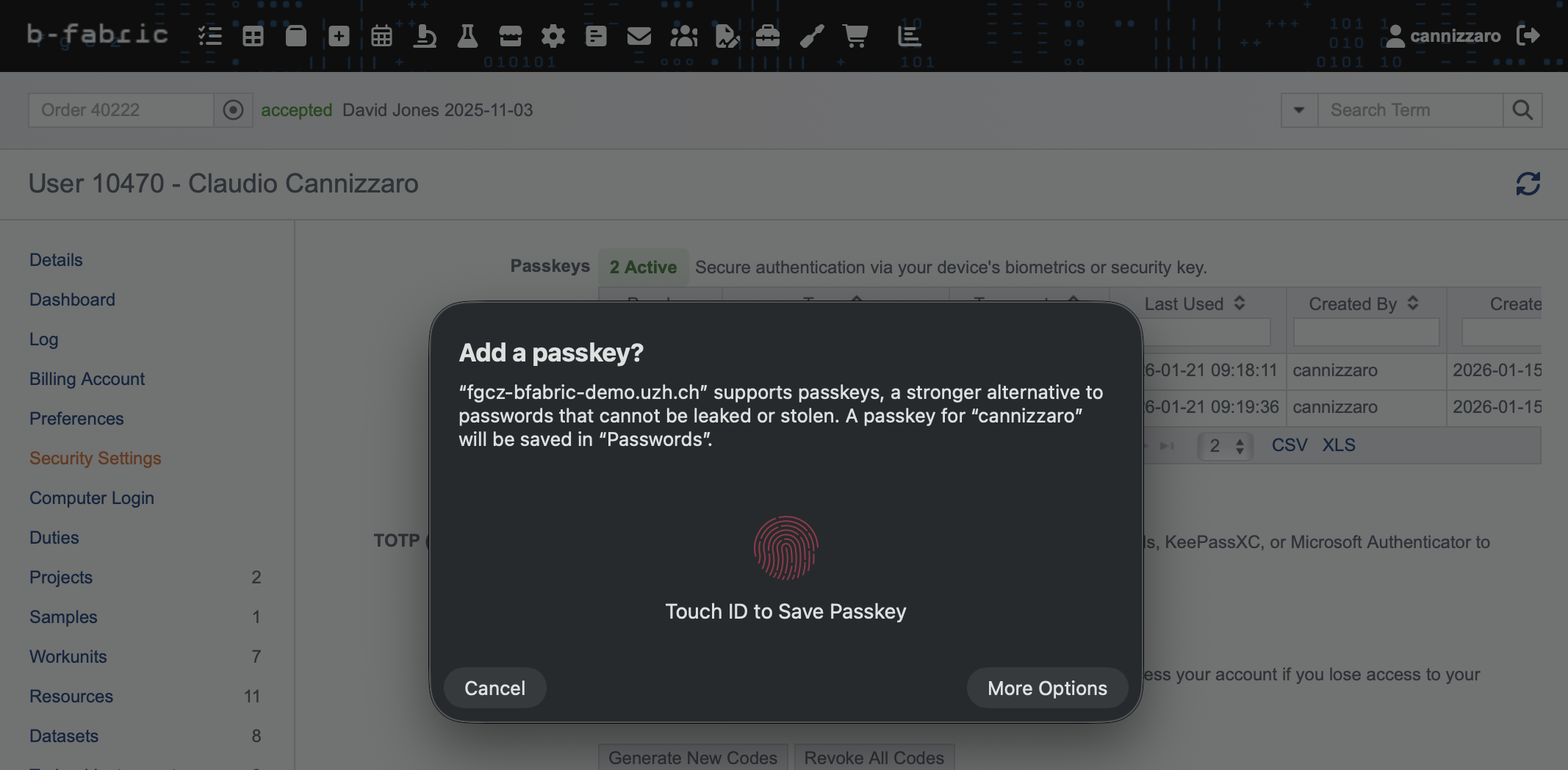
- Follow your browser's prompts to authenticate using fingerprint, Face ID, Windows Hello, or a security key. (example flow for Safari on MacOS)
- Save passkey to Apple Passwords using Touch ID or Face ID
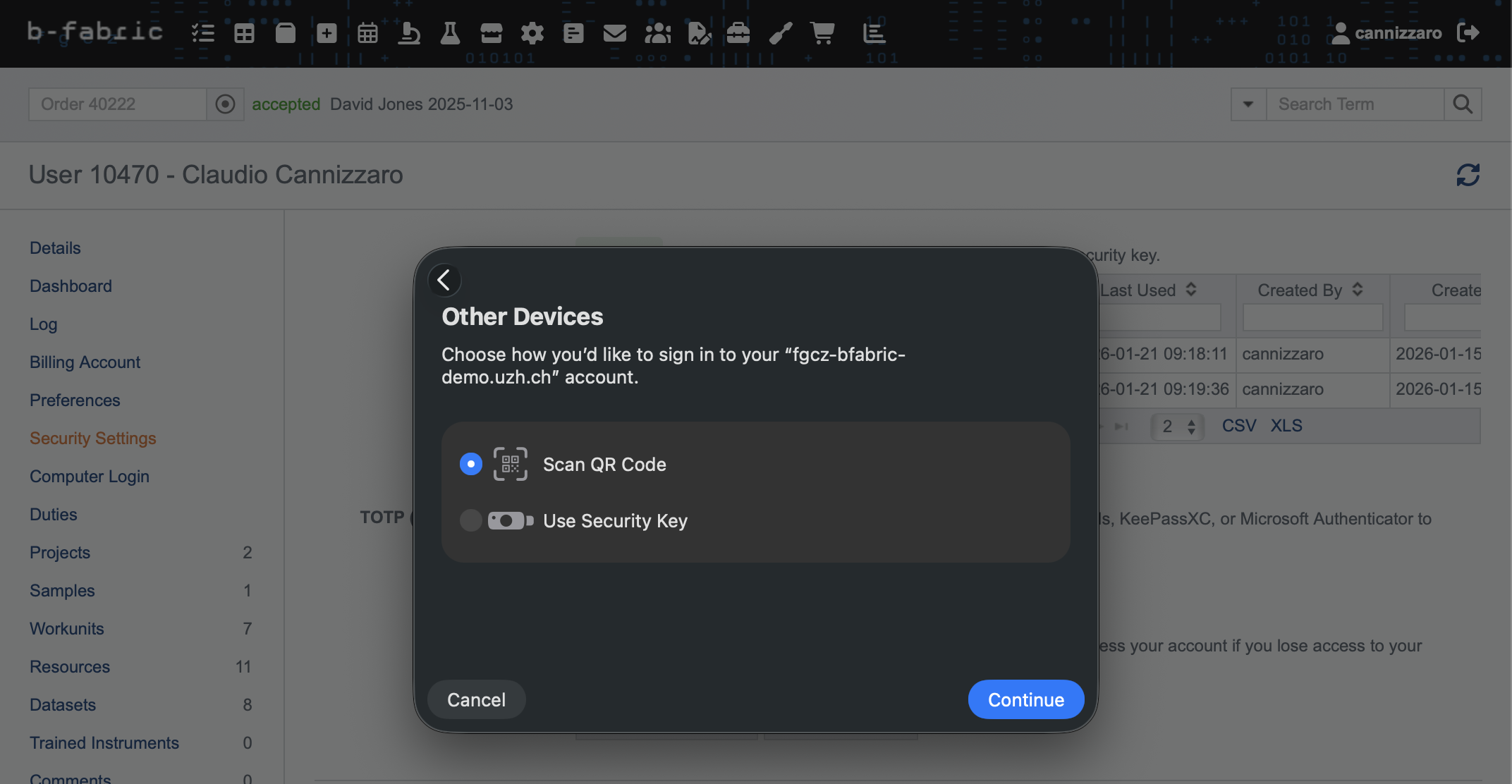
- More options for cross-device authentication: QR code or physical security key
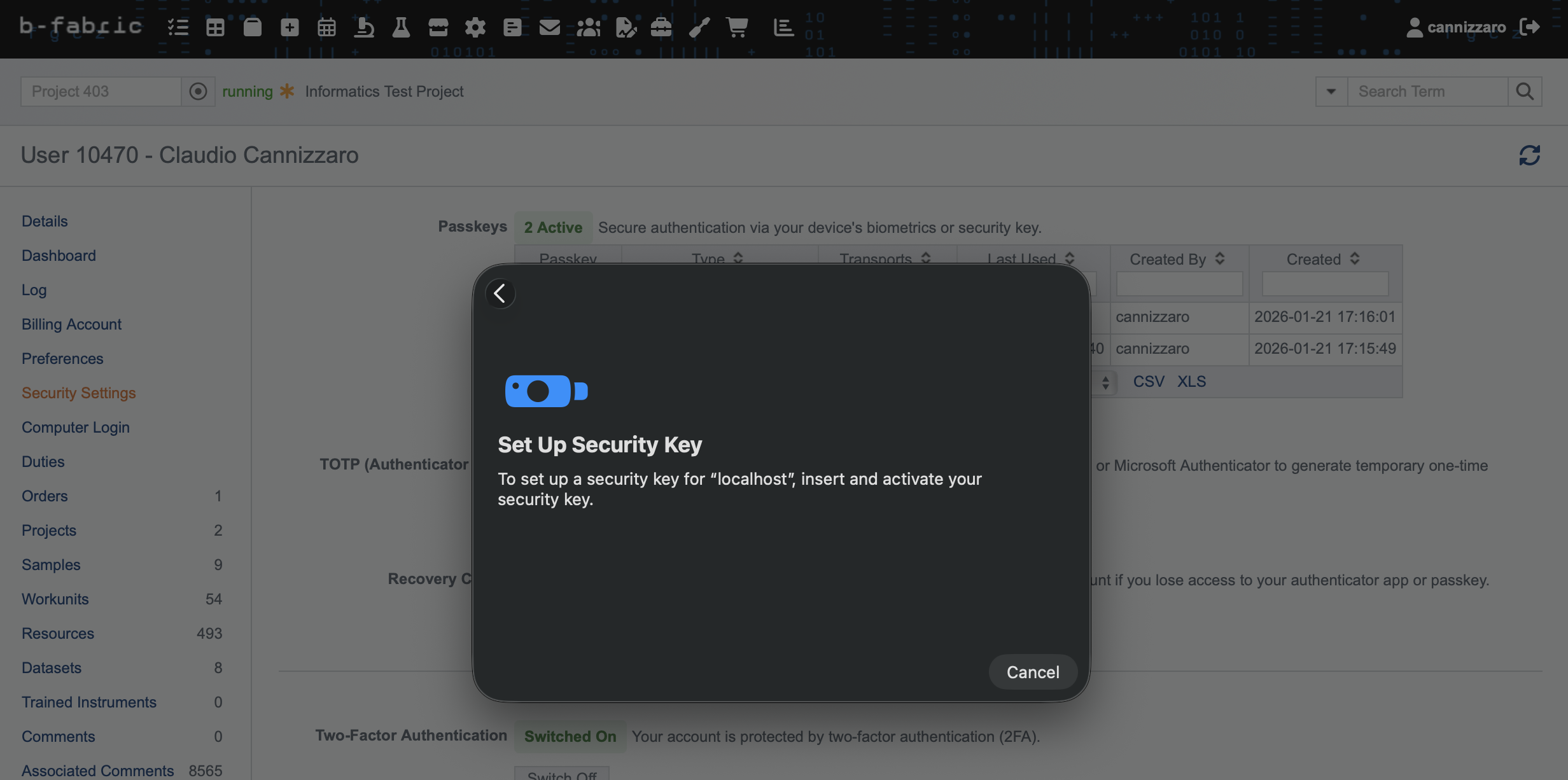
- Example: Connect your security key (hardware) to your device and tap it when prompted
- Example: Scan QR Code for cross device authentication
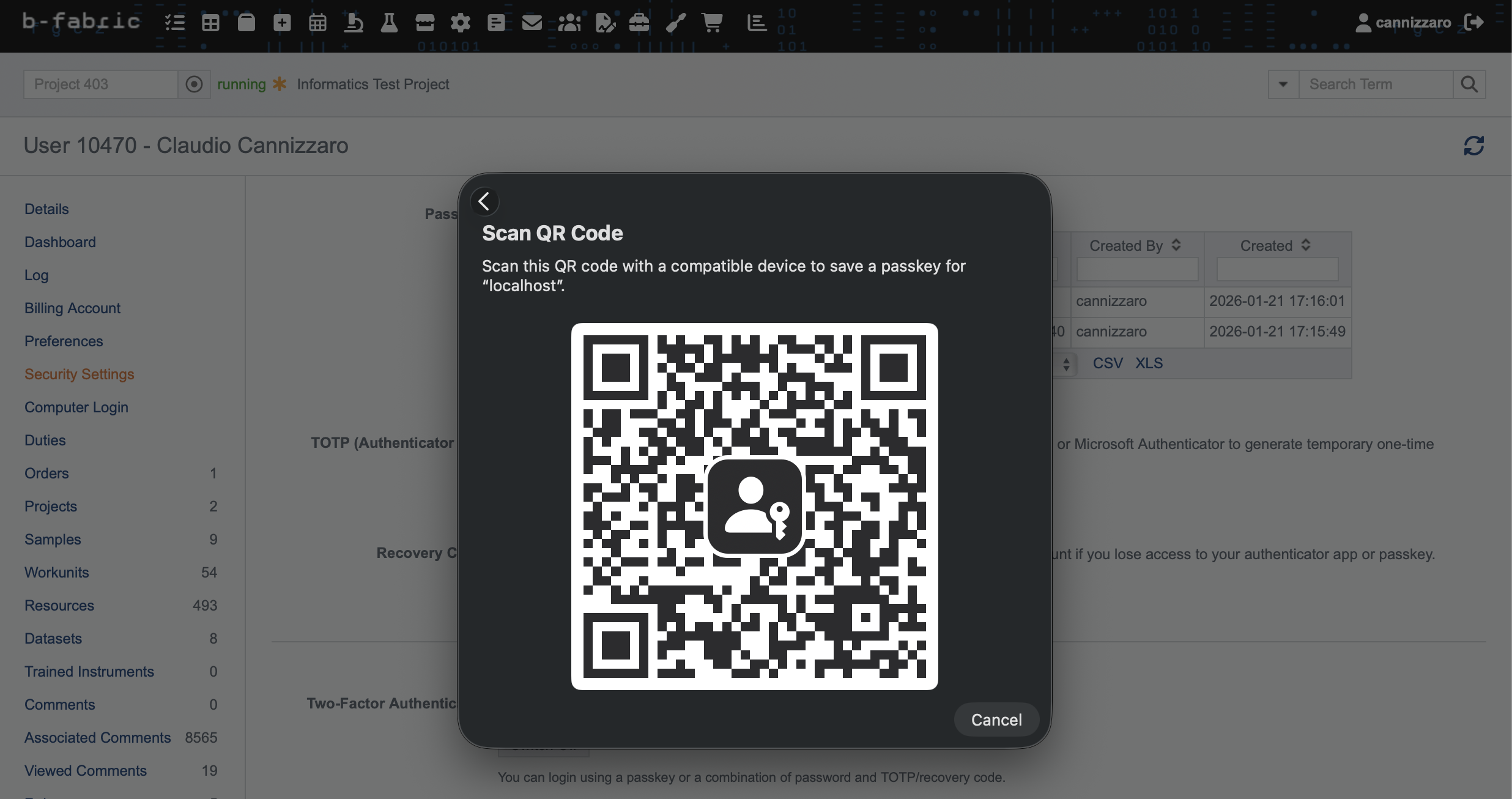
- Your passkey will be registered and will appear in the passkey list.
Use a Passkey to Login
After you've registered a passkey, you can use it to log in:
- Go to the B-Fabric login page and enter your username. Your browser might suggest a passkey as an autocomplete option, or you can click the 'Login with Passkey' button.
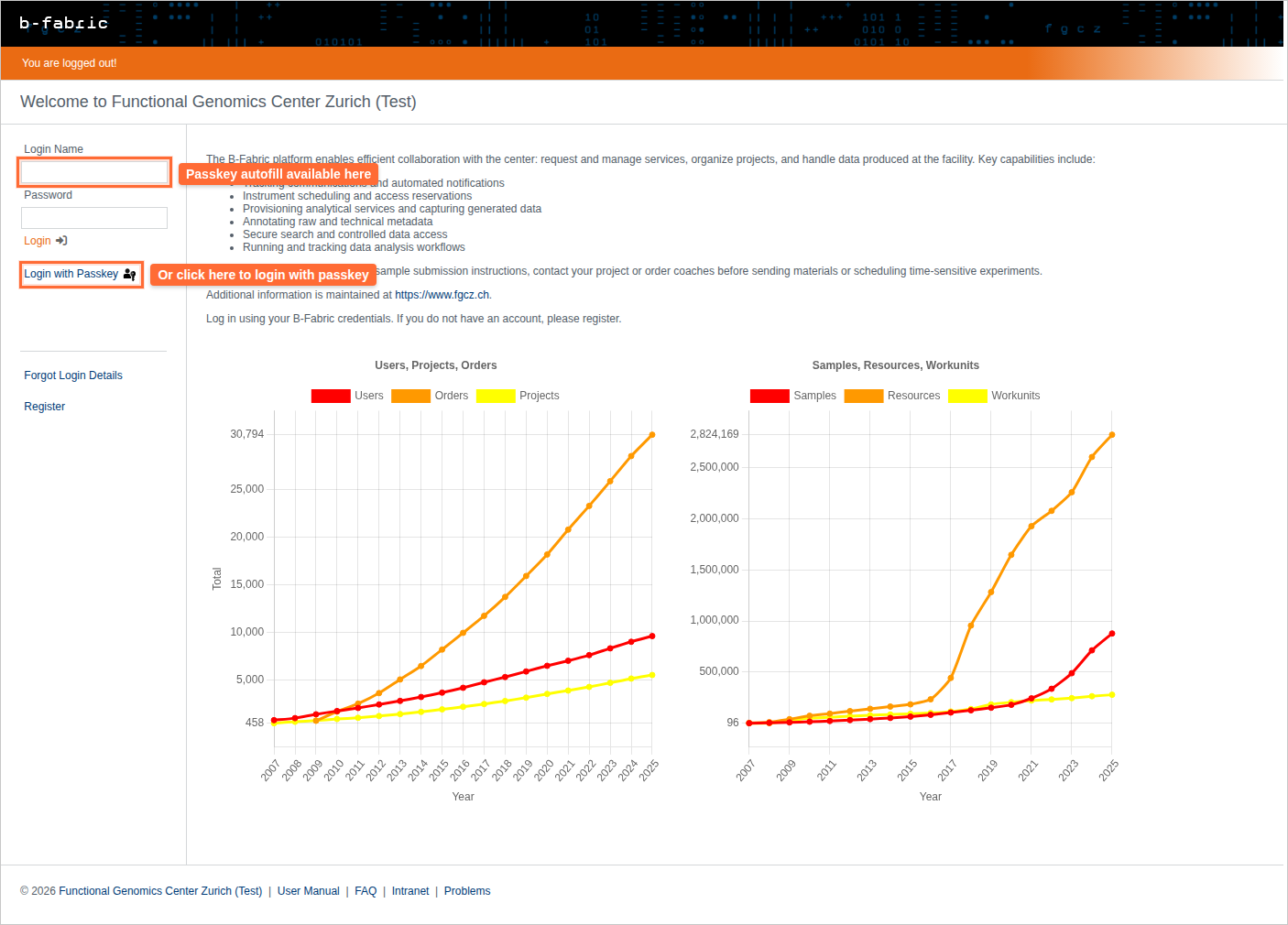
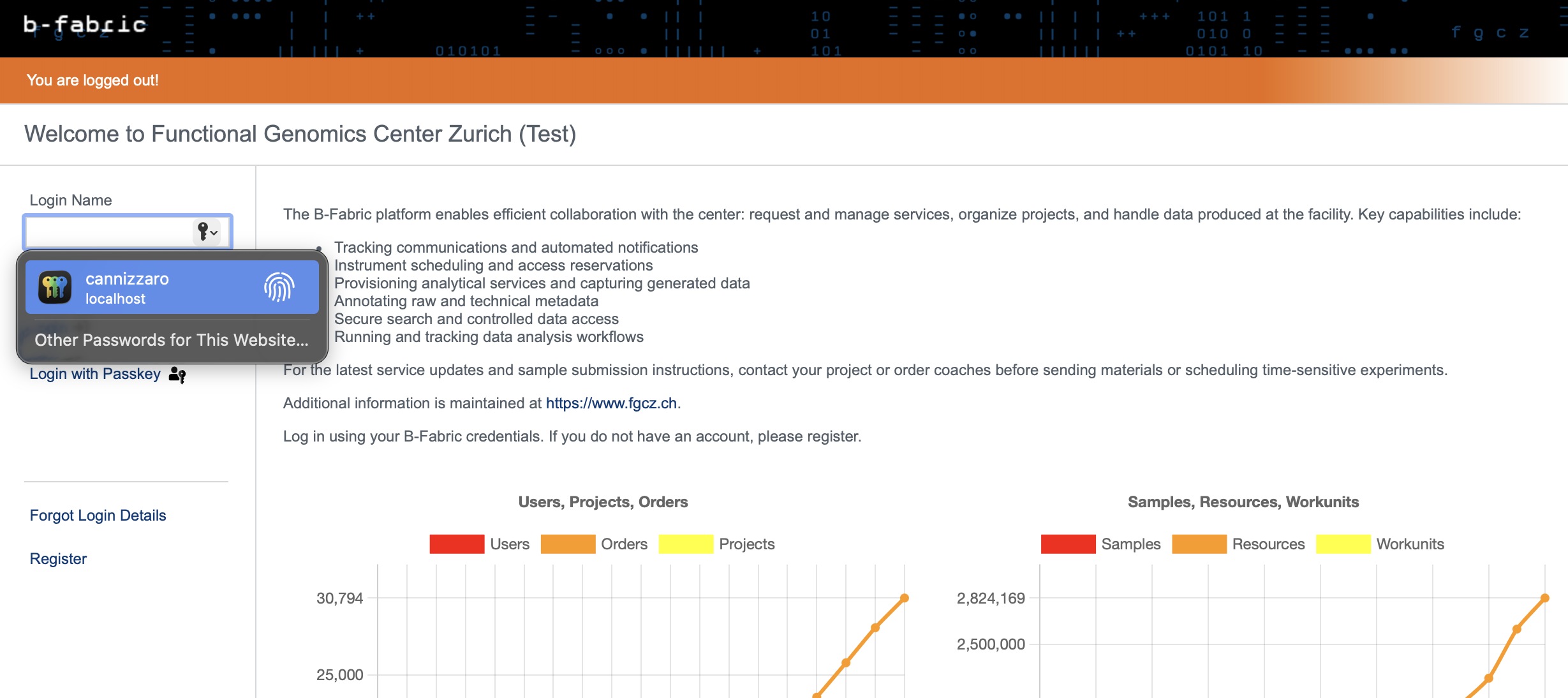
- Follow your browser's prompt to authenticate using your fingerprint, Face ID, or security key.
- You'll be logged in without needing to enter your password or 2FA code.
Remove a Passkey
- Navigate to your user profile and click the 'Two Factor' tab.
- Find the passkey you want to remove in the passkey list.
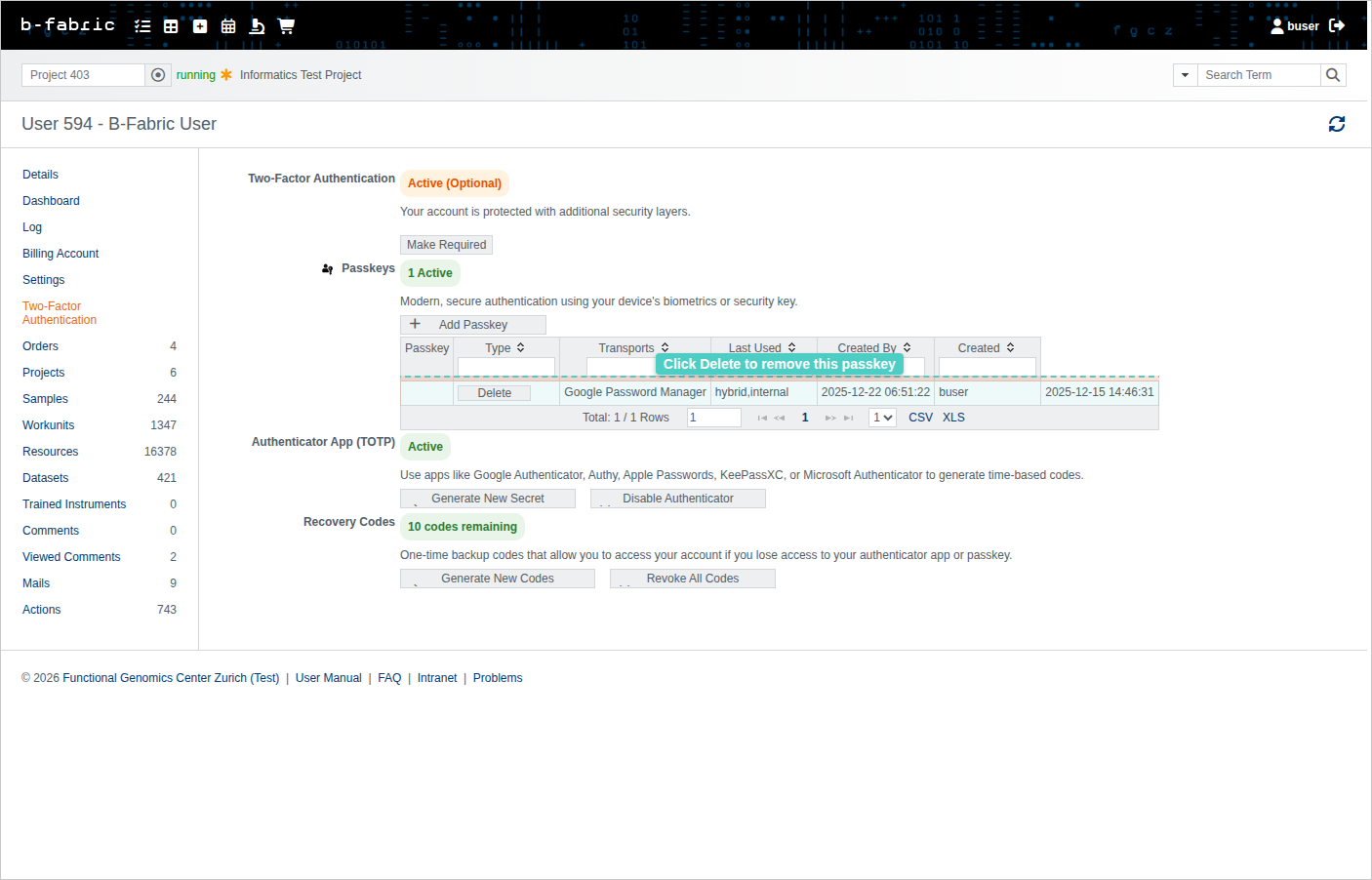
- Click the delete button next to the passkey and confirm the removal.
Note: You can have multiple passkeys for different devices. If you remove all passkeys and have no other 2FA method, 2FA will be disabled.